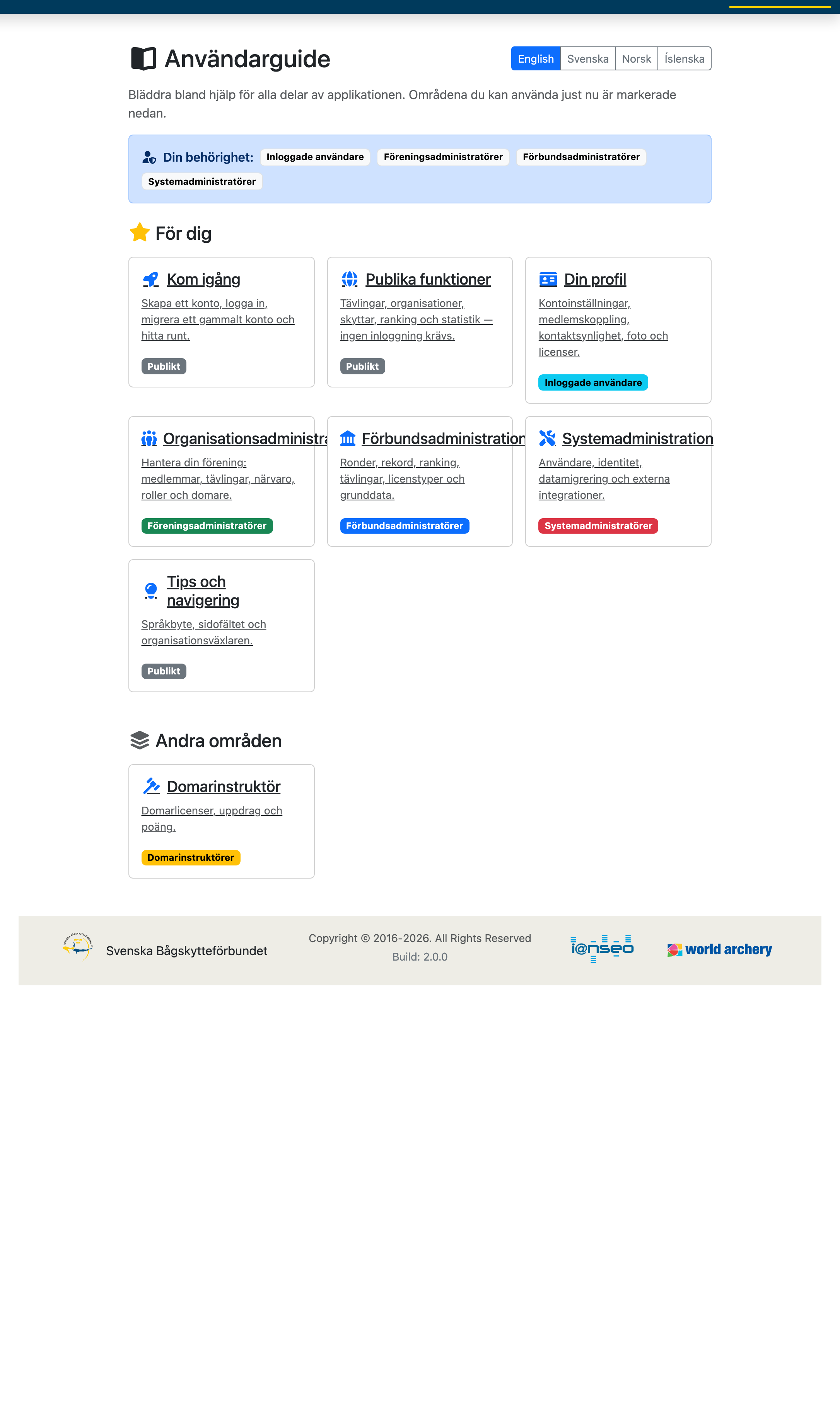
Access: Everyone — start here to create an account, sign in, and learn your way around.
Jump to a task
1.1 Creating an Account
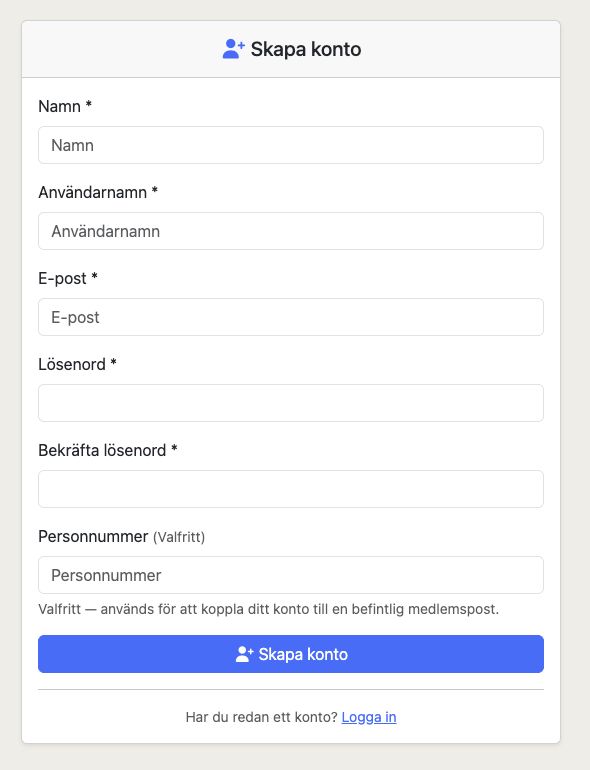
To access member-only features (favorites, profile, organization management) you need an account.
- Click Sign in in the top navigation bar.
- On the login page, click the Create account link.
- Fill in your name, username, email, and password.
- Click Create account to complete registration.
Tip: Your username must be unique. Choose something you'll remember — it's used every time you sign in.
1.2 Signing In
- Click Sign in in the top navigation bar.
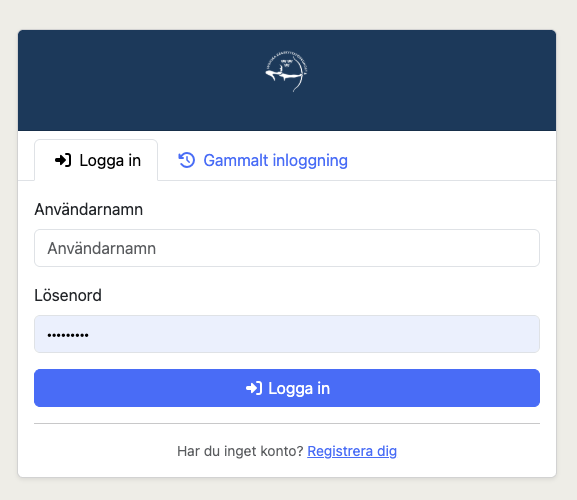
- Enter your username and password.
- Click Sign in.
Your session stays active for 8 hours. After that you'll be asked to sign in again.
1.3 Migrating a Legacy Account
If you used the previous system (before ARS) you can migrate your old account. This transfers your existing roles (e.g., Organization Administrator, Federation Administrator) to a new ARS account.
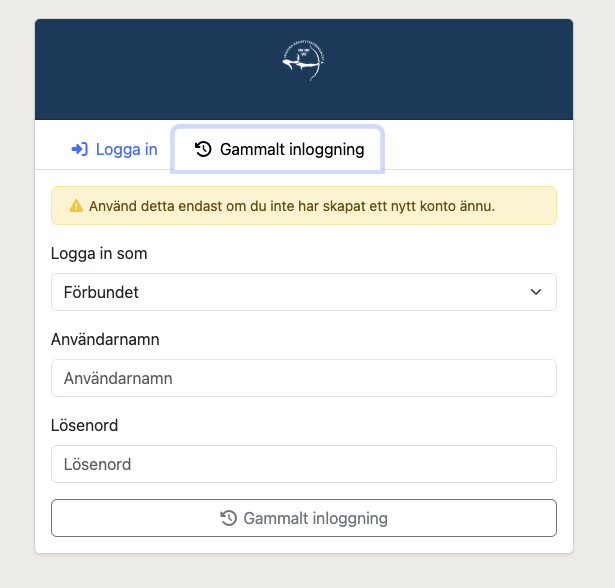
- On the login page, click the Legacy Login tab.
- Select your organization from the dropdown list.
- Enter your old username and password.
- Click Legacy Login.
If your credentials are valid, you are redirected to the Migrate Account page. Here you'll see a summary of your legacy account including your name and the roles that will be transferred.
- Fill in a new username, password, name, and optionally an email for your new ARS account.
- Click Create account.
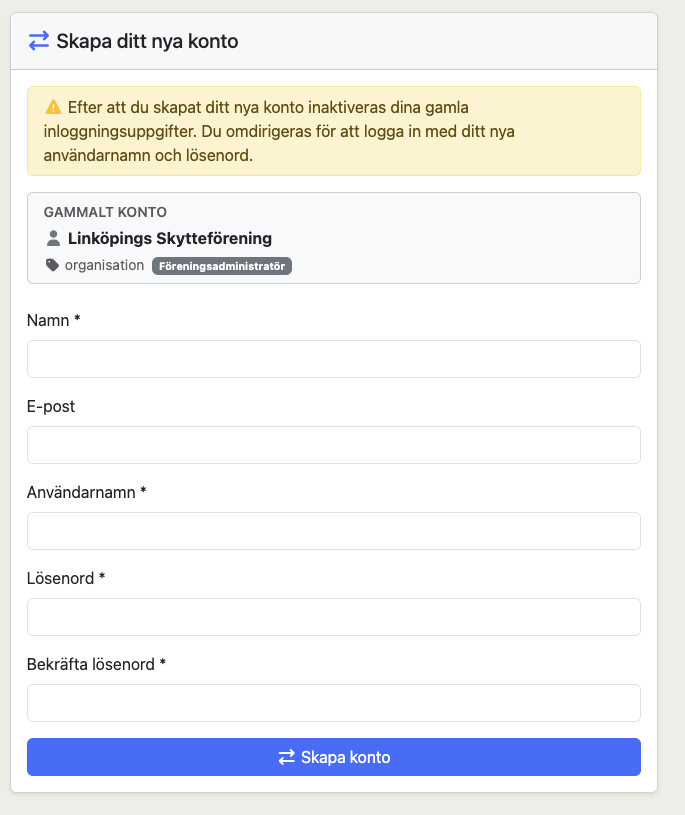
Your new account is created with all your previous roles already assigned. The legacy credentials are disabled — from now on, use the regular Sign in tab with your new username and password.
Important: Each legacy account can only be migrated once. After migration, the old login is permanently disabled. If you've already migrated, use the regular Sign in tab — the legacy login will inform you that you already have a new account.
1.4 Navigating the Application
When you are not signed in the top navigation bar shows links to all public pages:
| Menu item | Description |
|---|---|
| Upcoming Events | Competitions and events scheduled in the future |
| Completed Events | Past events with results |
| Organizations | Browse clubs and districts |
| Archers | Search for archers |
| Ranking | View seasonal ranking lists |
| Statistics | Competition attendance and age-class breakdowns |
When you are signed in a collapsible sidebar replaces the navigation bar and shows your role-specific menus (Organization, Federation, Judge, System) in addition to the public pages.
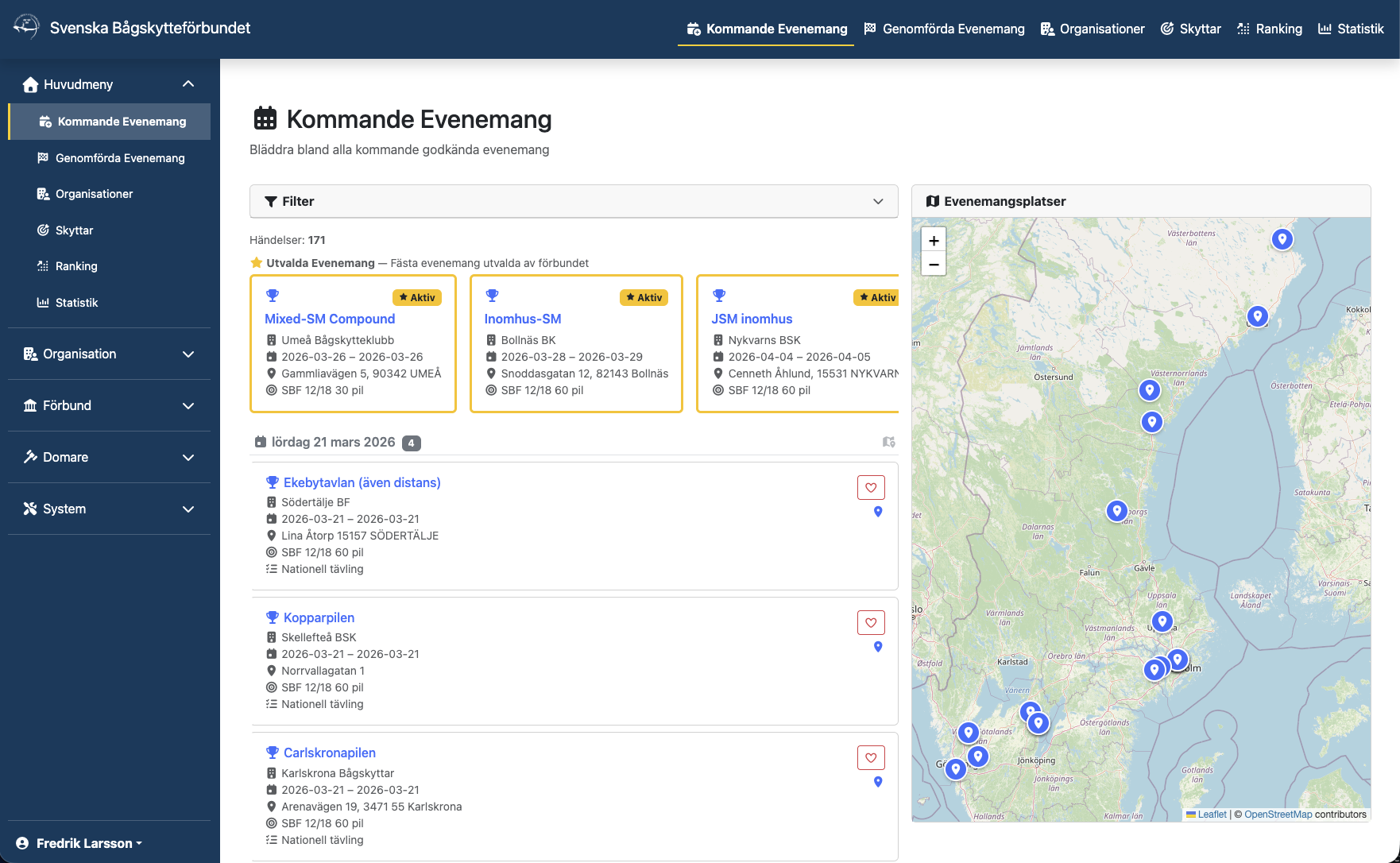
This User Guide adapts to you, too: the home page shows a Your access summary and highlights the sections relevant to your role under For you, with everything else under Other areas — anyone can still open any section.