Access: Everyone — no login required.
All features in this section are available to everyone — no account needed.
Jump to a task
- Find upcoming events (filters, near me, calendar)
- See completed events and their results
- Browse clubs
- Search for an archer
- View seasonal ranking lists
- See competition statistics
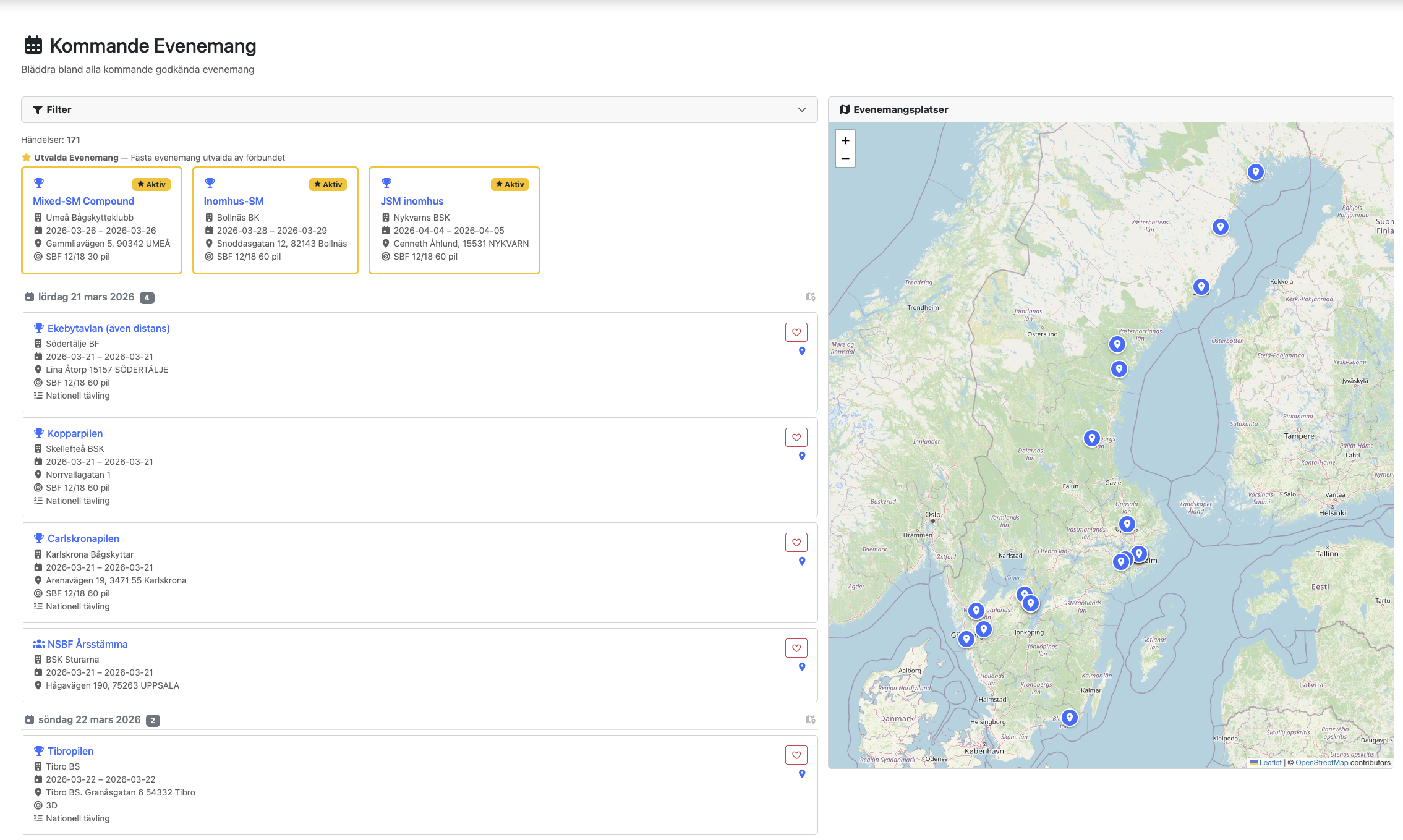
2.1 Upcoming Events
The Upcoming Events page shows all future competitions and events.
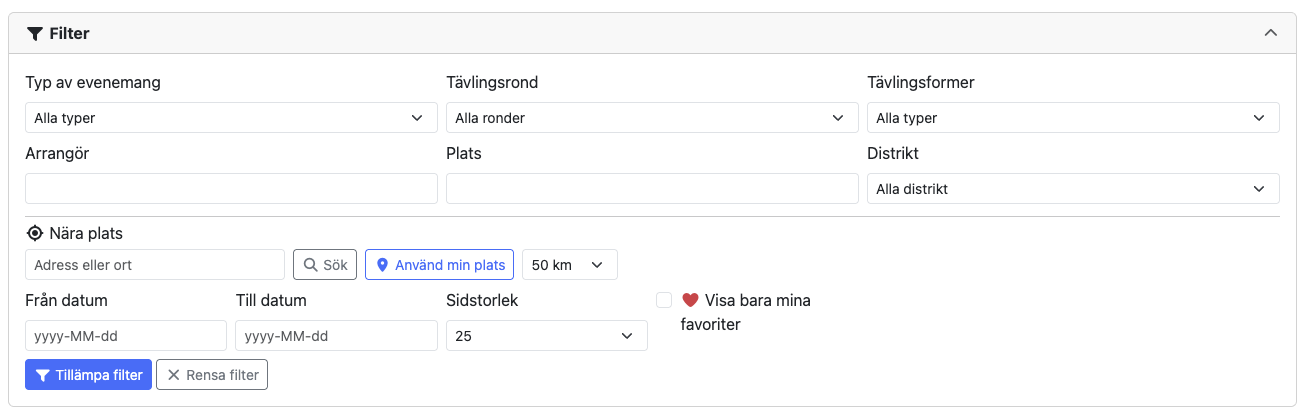
Filtering
Click the Filters bar to expand the filter panel. Available filters:
| Filter | Description |
|---|---|
| Event Type | Competition, Training, Meeting, etc. |
| Competition Round | The specific discipline/round (e.g., Indoor, Field, 3D) |
| Competition Form | The competition format |
| Organizer | Free text — search by club name |
| Location | Free text — search by city or venue |
| District | Select a district to show only events from clubs in that district |
| Date range | Set a start and/or end date |
| My favorites only | Show only events you've marked as favorites (requires login) |
Active filters are displayed as colored badges in the filter bar header so you can always see what's active.
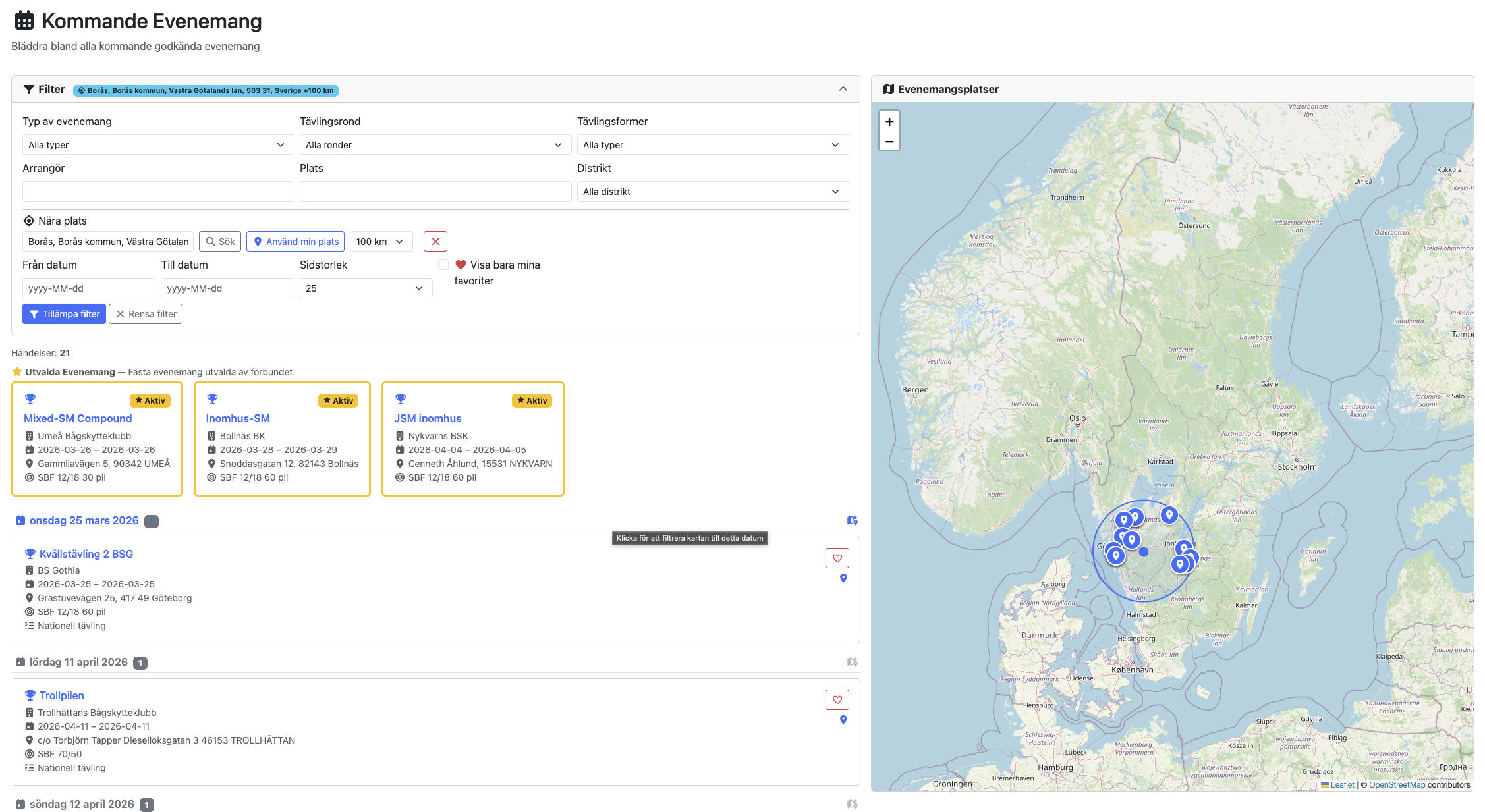
Proximity Search
You can search for events near a specific location:
- Click Use my location to use your device's GPS, or type an address and click Search address.
- Set the radius in kilometers (default: 50 km).
- Events are filtered to only those within the radius. A badge shows the location and distance.
Favorites
When signed in, you can click the heart icon on any event to save it as a favorite. Use the My favorites only filter to quickly see your saved events.
Calendar Subscription
You can subscribe to archery events directly in your calendar app (Google Calendar, Apple Calendar, Outlook, etc.) so that events appear automatically and stay up to date.
Two subscription links are available at the top of the Upcoming Events page:
| Button | Description |
|---|---|
| Subscribe to all events | An iCal feed of all upcoming approved events. No login required. |
| Subscribe to my favorites | An iCal feed containing only the events you have marked as favorites. Only visible when you are signed in. |
To subscribe:
- Click the calendar button for the feed you want.
- Your browser will either open the link directly in a calendar app or allow you to copy the URL.
- In your calendar app, choose Add calendar by URL (or equivalent) and paste the link.
The feed updates automatically — any newly approved events (or newly favorited events, for the favorites feed) will appear in your calendar without any manual action.
Tip: The favorites feed link is personal and tied to your account. Do not share it publicly — anyone with the link can see which events you have favorited.
Highlighted Events
The federation can highlight important events. These appear in a special section at the top of the page with extra visibility.
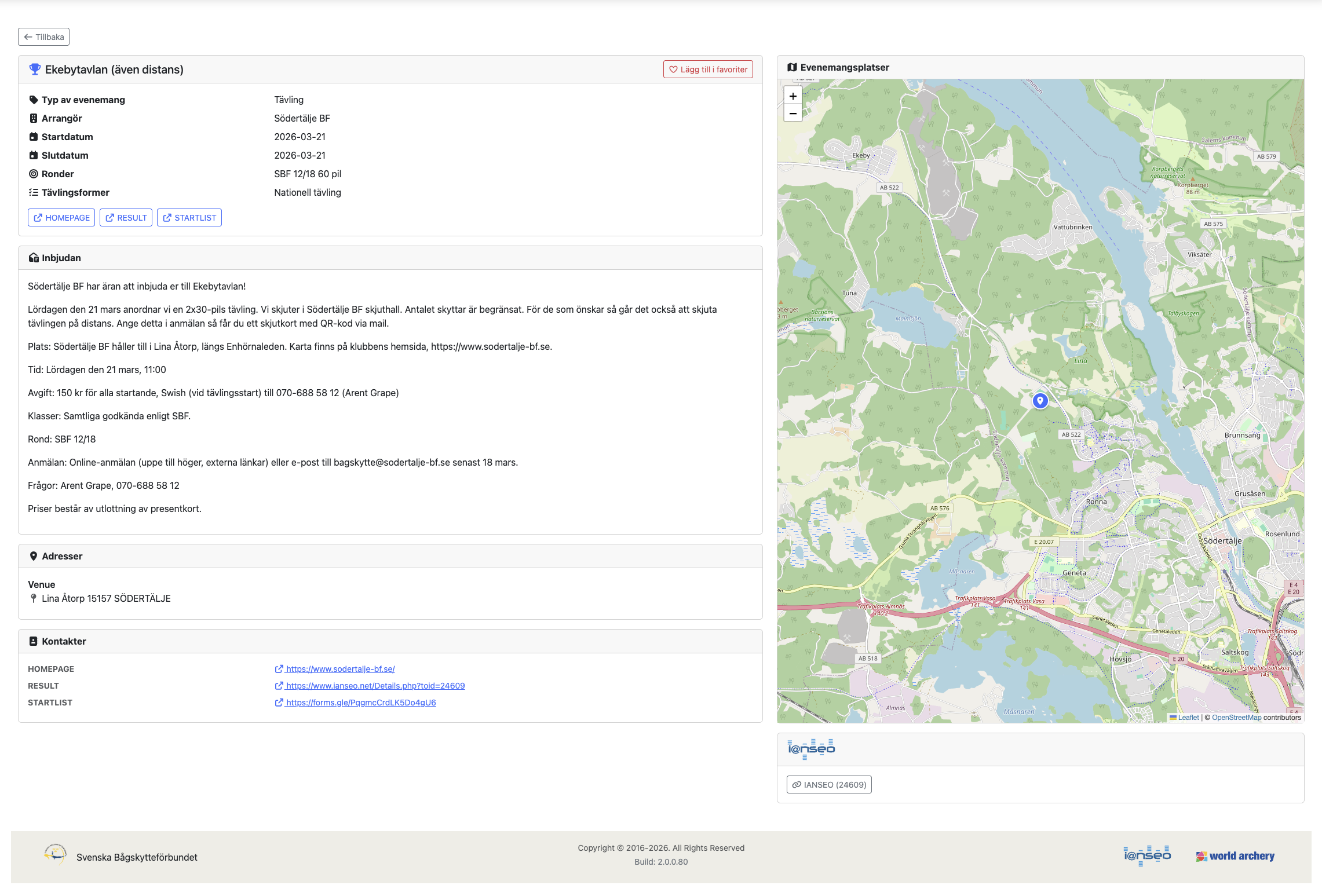
Event Details
Click an event name to view its full details including:
- Date, time, and location
- Organizer information
- Competition round and format
- Contact details and links
- Map with venue location (if coordinates are available)
2.2 Completed Events
The Completed Events page shows past events with their results.
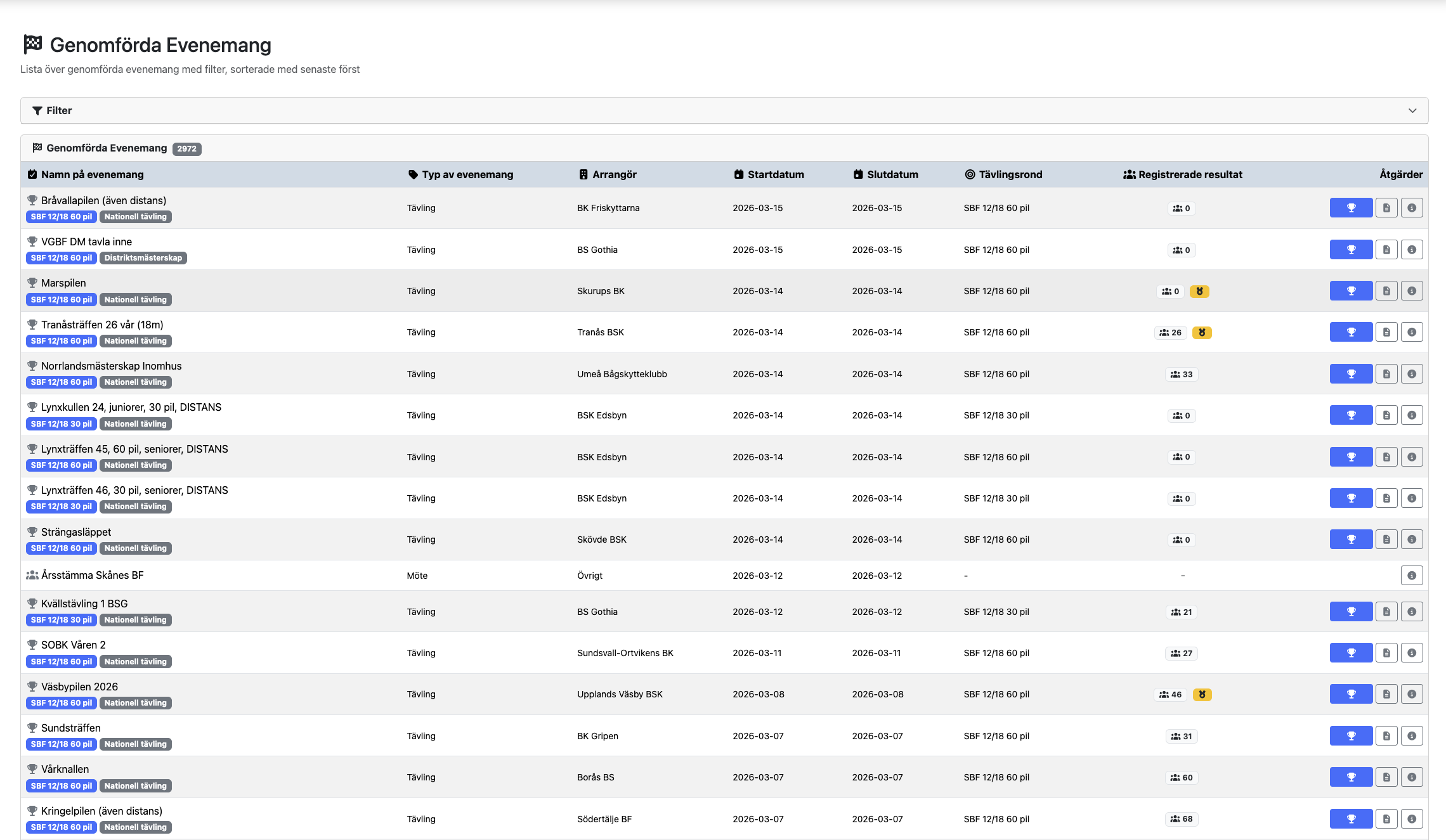
Filtering
The same filter panel as Upcoming Events is available, plus a Result Filter to show only events that have uploaded results.
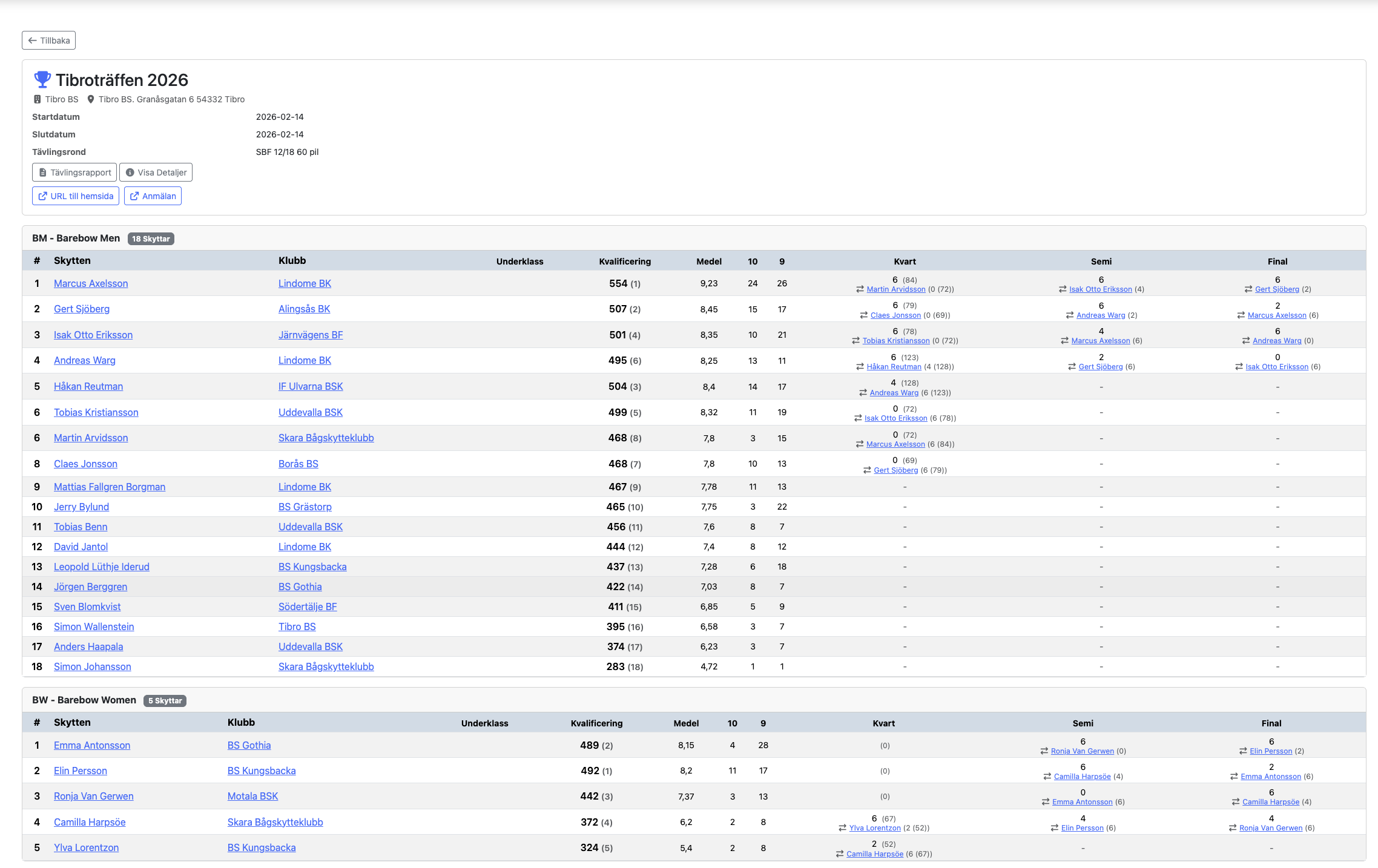
Viewing Results
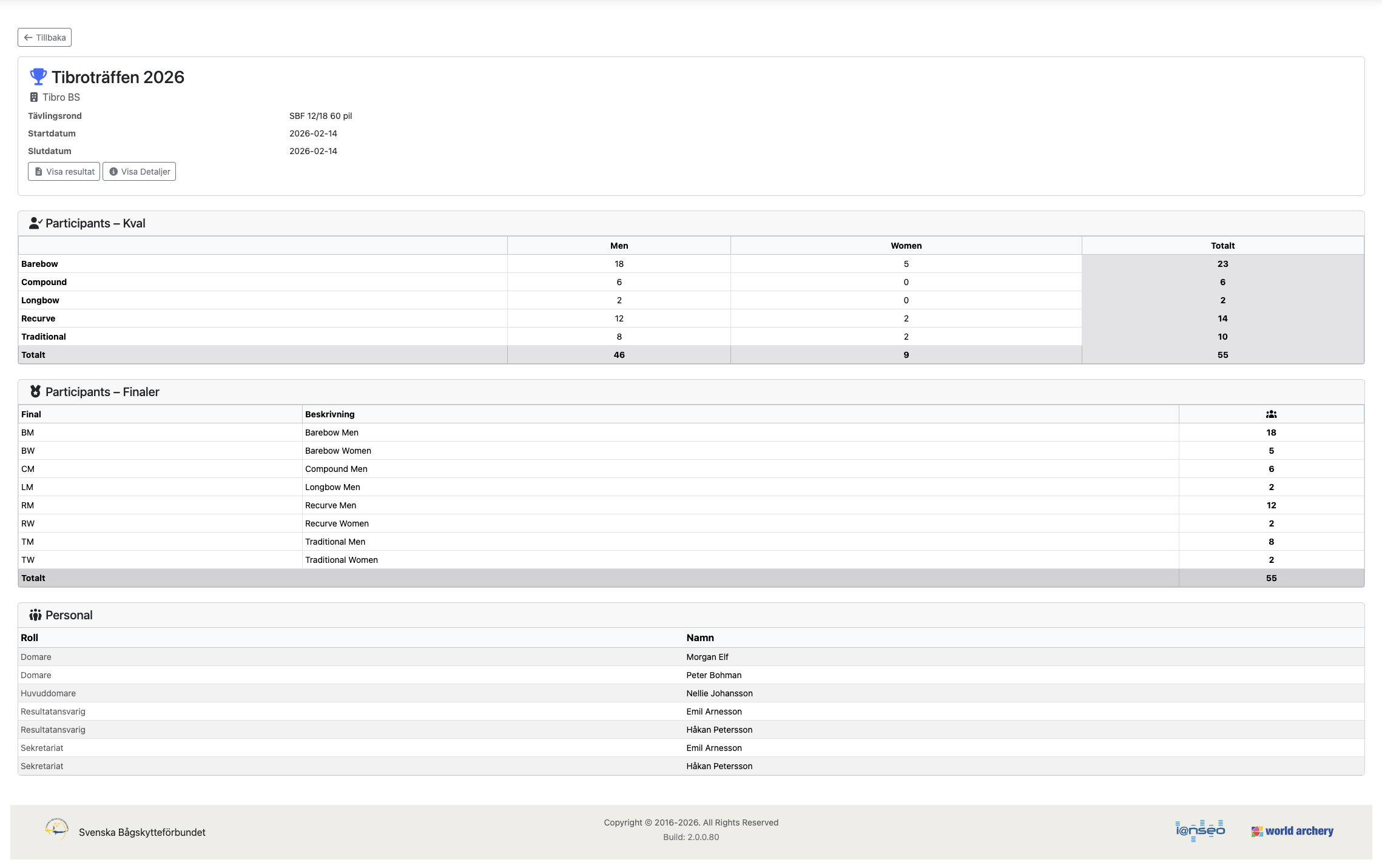
Click an event to see its detail page. From there you can:
- View Results — See the full result list with scores, rankings, and archer information.
- View Report — See the event report including participant statistics, weather/light conditions, competition personnel, and federation assignments.
2.3 Organizations
The Organizations page lists all active clubs in the federation.
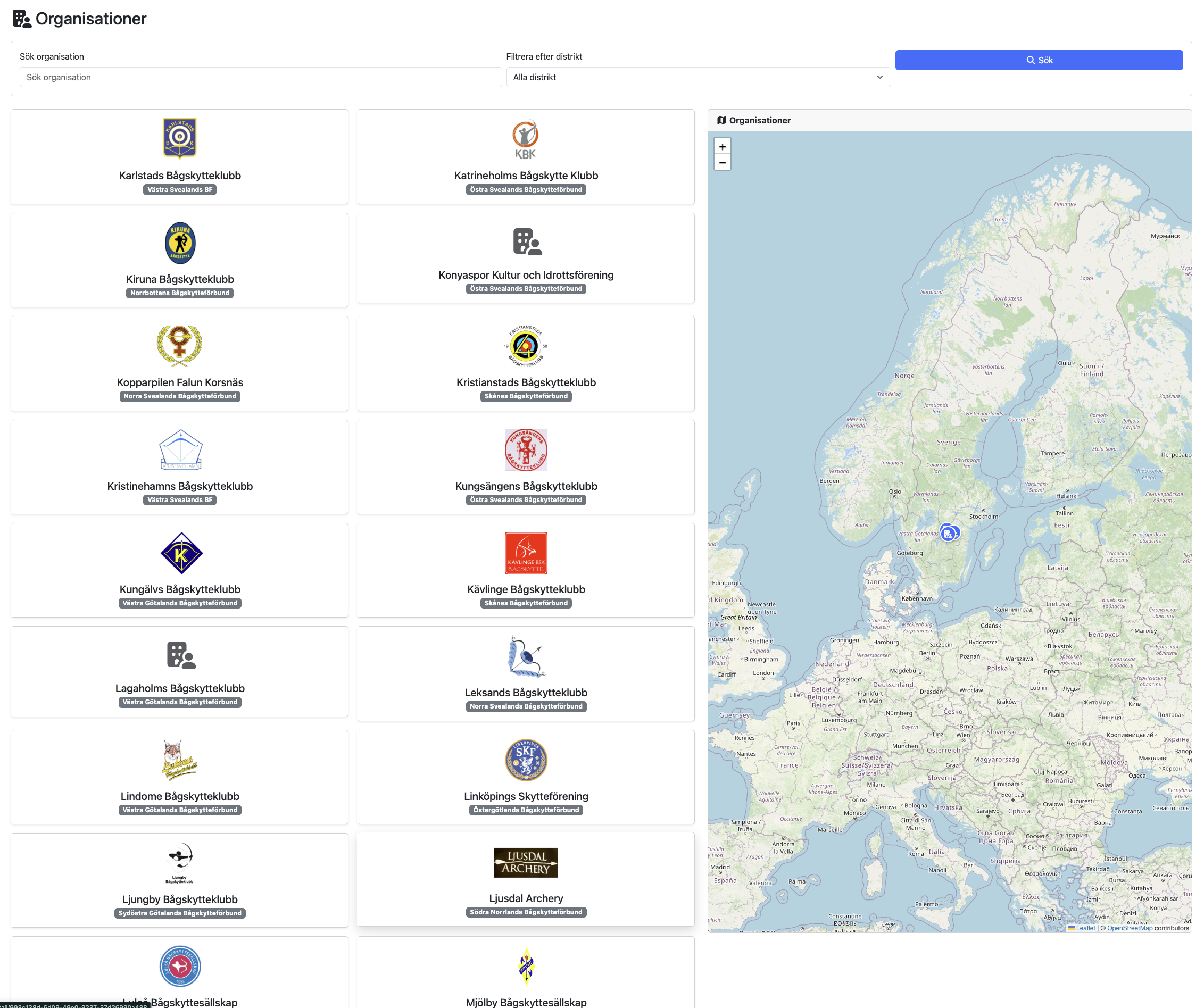
Search & Filter
- Use the search box to filter by club name.
- Use the District dropdown to show only clubs from a specific district.
- A map on the right shows pins for clubs that have public address coordinates.
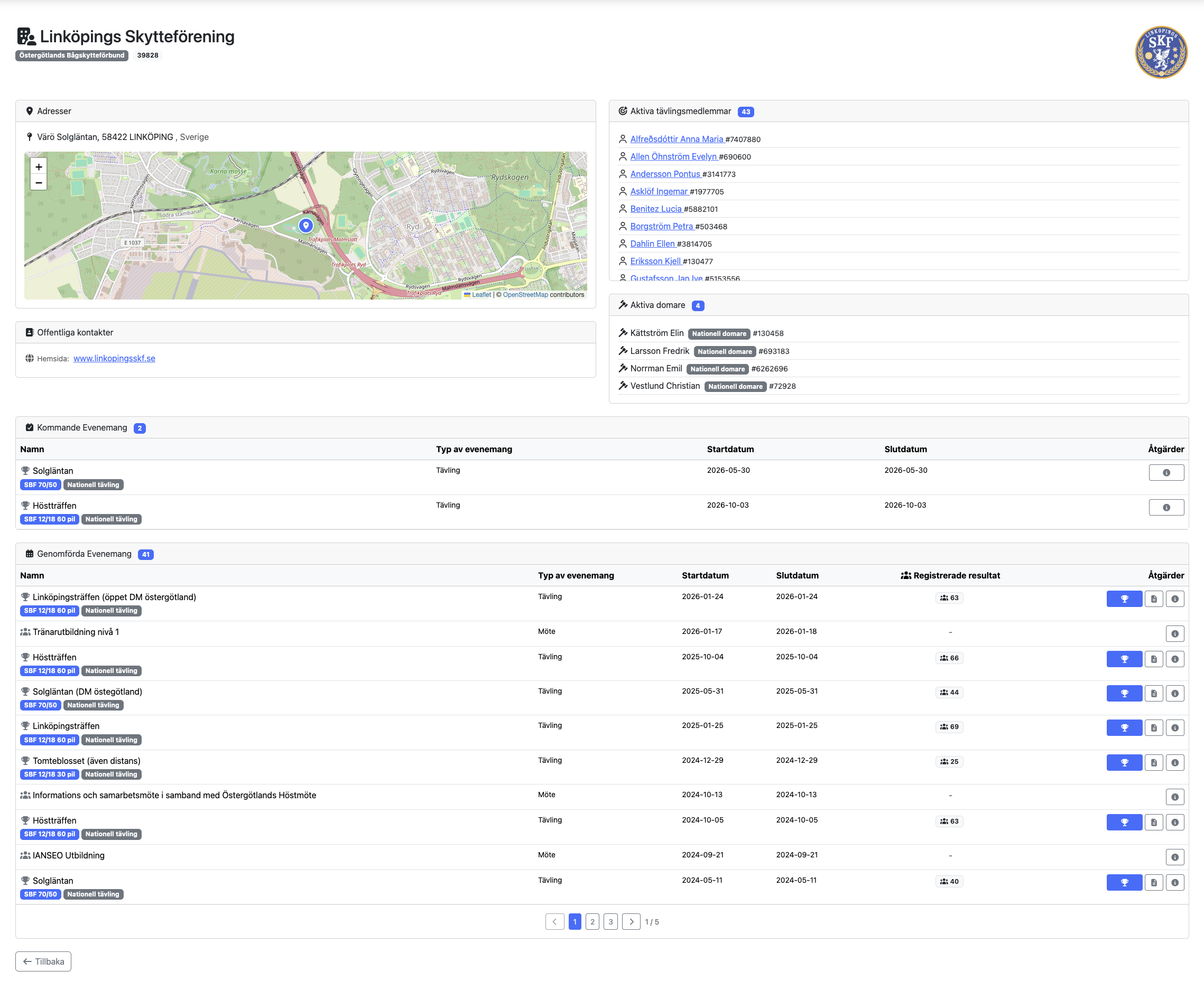
Organization Detail Page
Click a club name to see its full profile:
| Section | Information |
|---|---|
| General | Name, organization number, district membership |
| Addresses | Public postal addresses with map |
| Contacts | Public contact information (phone, email, website) with contact type icons |
| Members | List of public members with profile pictures |
| Upcoming events | Future events organized by this club |
| Completed events | Past events with links to results |
| Judges | Licensed judges in this club |
| Licenses | Active competition licenses |
2.4 Archers
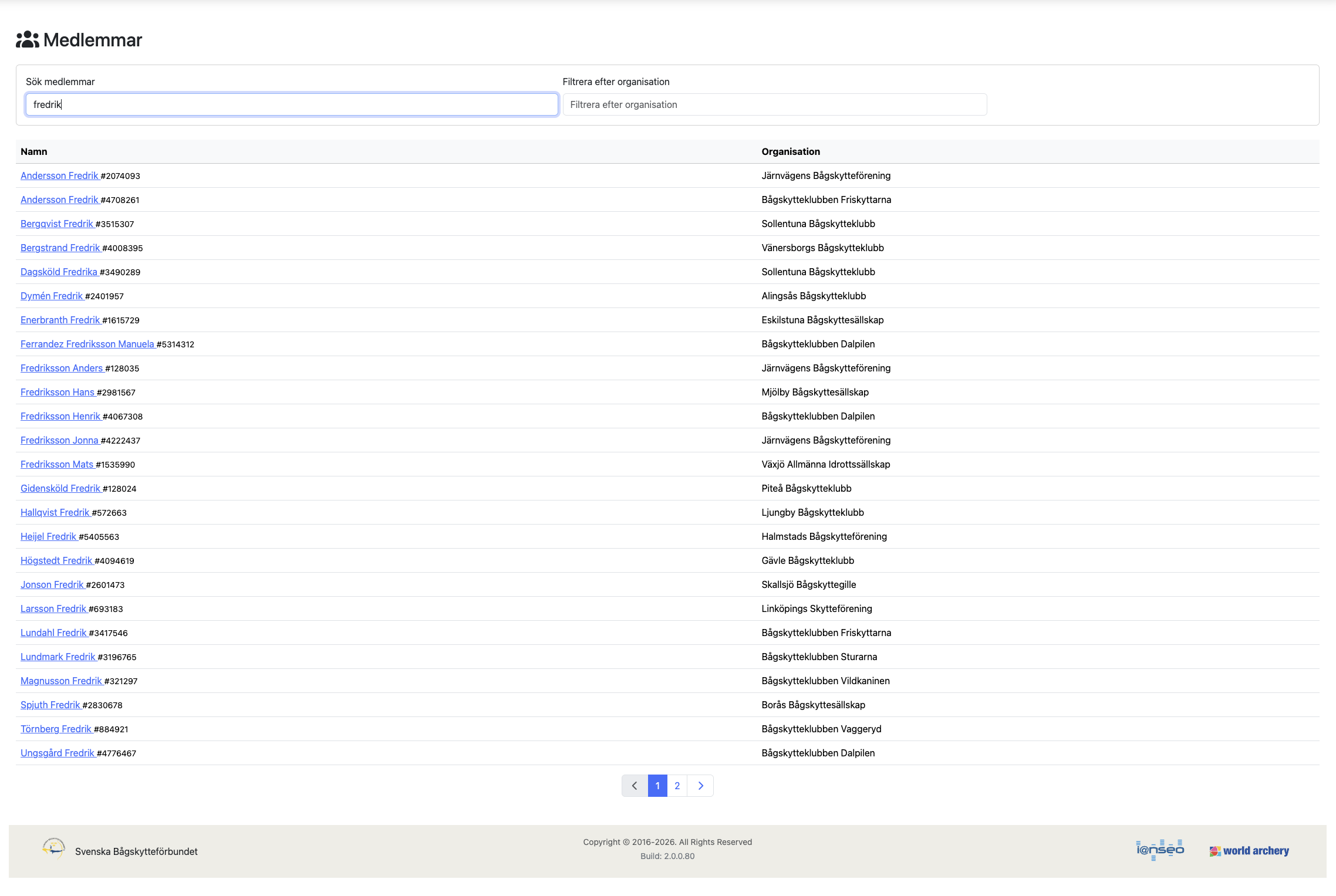
The Archers page lets you search for individual archers.
- Type at least 2 characters in the search box.
- Results appear with the archer's name, club, and person ID.
- Click an archer to view their detail page.
Archer Detail Page
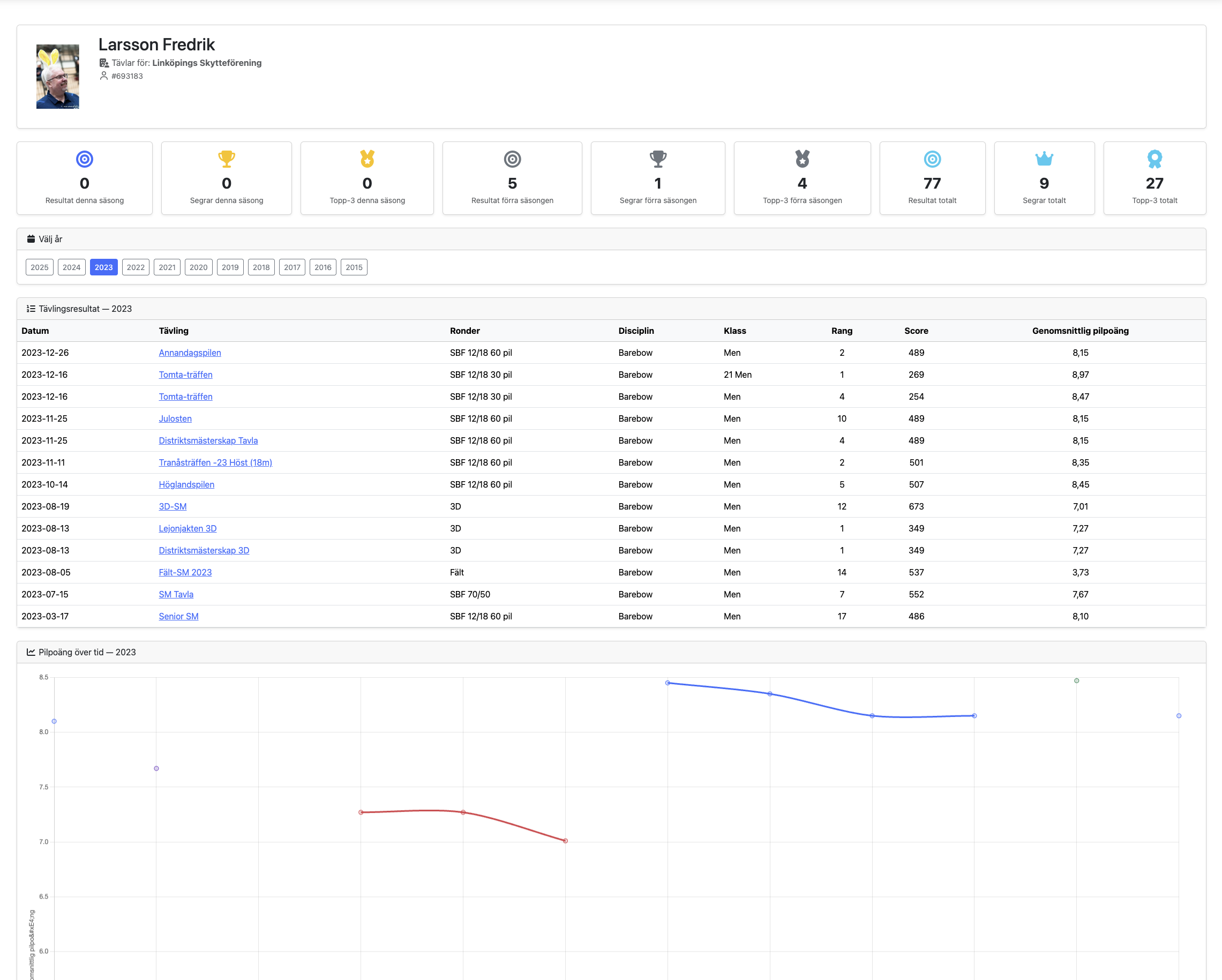
The detail page shows:
- Profile picture
- Current club membership
- Competition history with links to results
- Active licenses
2.5 Ranking
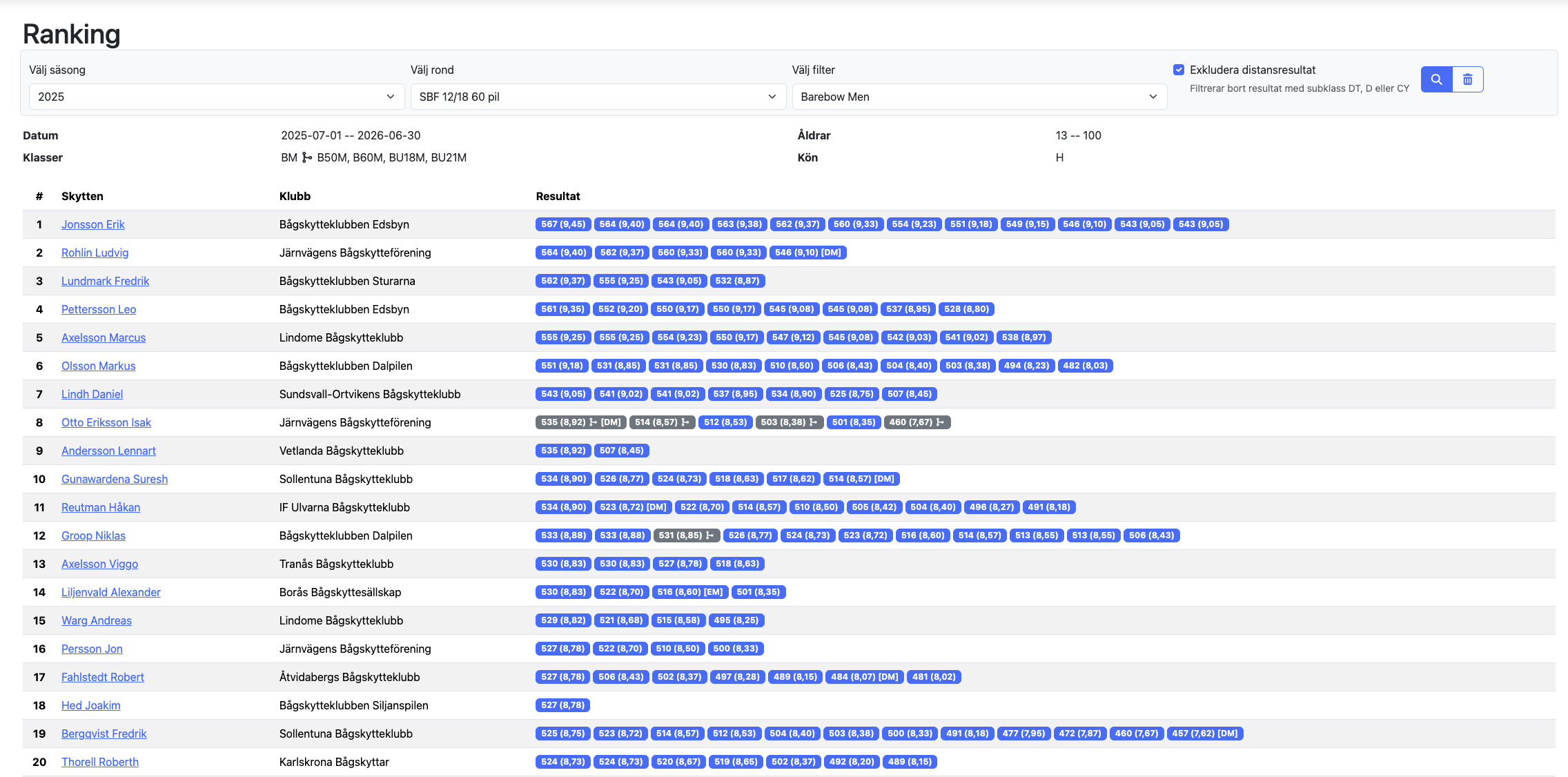
The Ranking page shows seasonal ranking lists for different competition rounds.
How to Use
- Select a season (year) from the dropdown.
- Select a round — the available rounds update based on the selected season.
- Select a filter — each round may have multiple ranking categories (age class, gender, bow type).
- Click a filter to load the ranking results.
Ranking Results
The results table shows:
| Column | Description |
|---|---|
| Rank | The archer's position in the ranking |
| Name | Archer name (click to view profile) |
| Club | The archer's club |
| Results | Individual competition results that contribute to the ranking |
Exclude Remote Results
Check the Exclude remote results checkbox to filter out remote-participation subclasses (DT, D, CY). This is useful when you want to see only results from archers who competed on-site.
2.6 Statistics
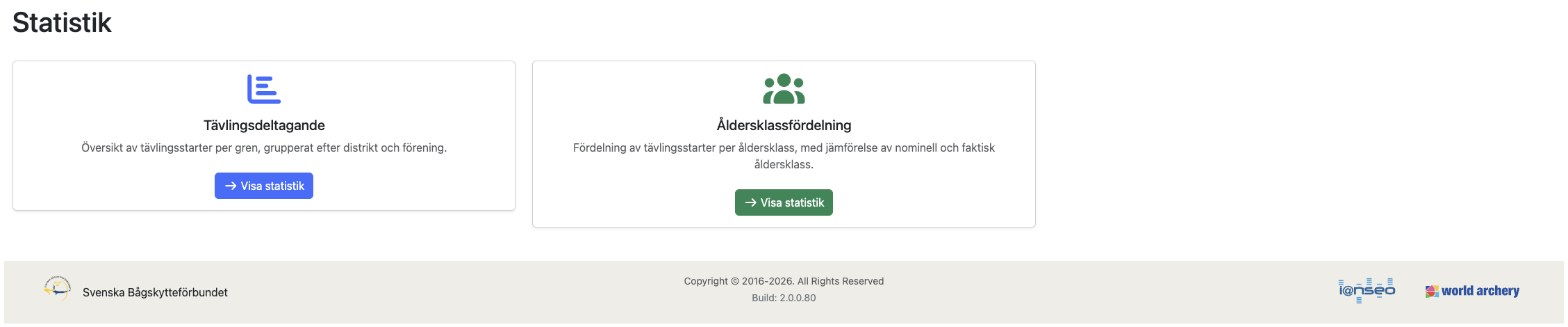
The Statistics page offers two types of analysis:
Competition Attendance
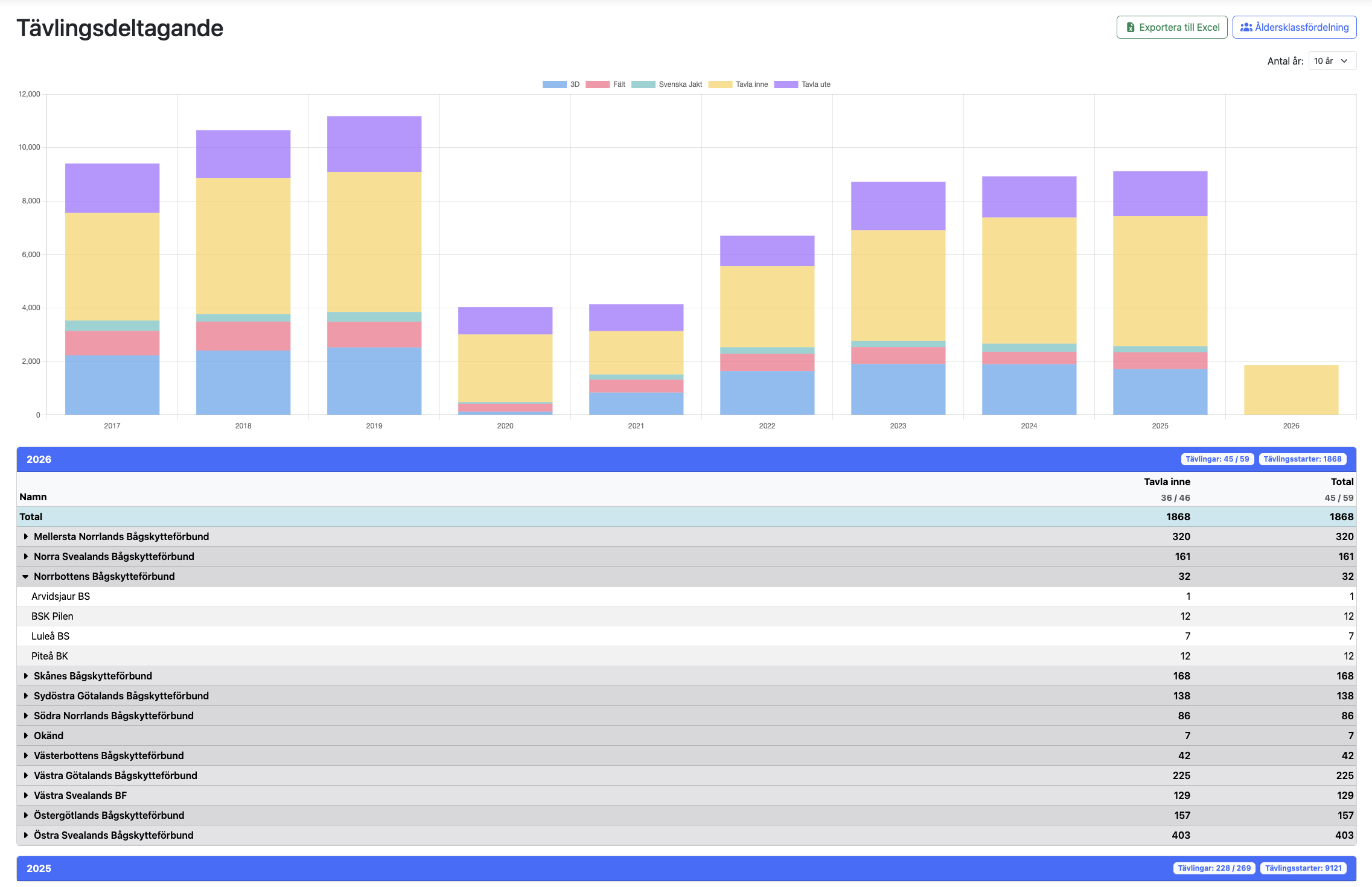
Shows how many starts (participations) have been registered per competition round per year.
- A table displays years as columns and rounds as rows with start counts.
- An interactive graph visualizes trends over time.
- By default, the last 10 years are shown. Use the year-range selector to adjust.
- Only rounds that have registered results are displayed.
- The header shows the total number of planned and completed competitions for the displayed rounds.
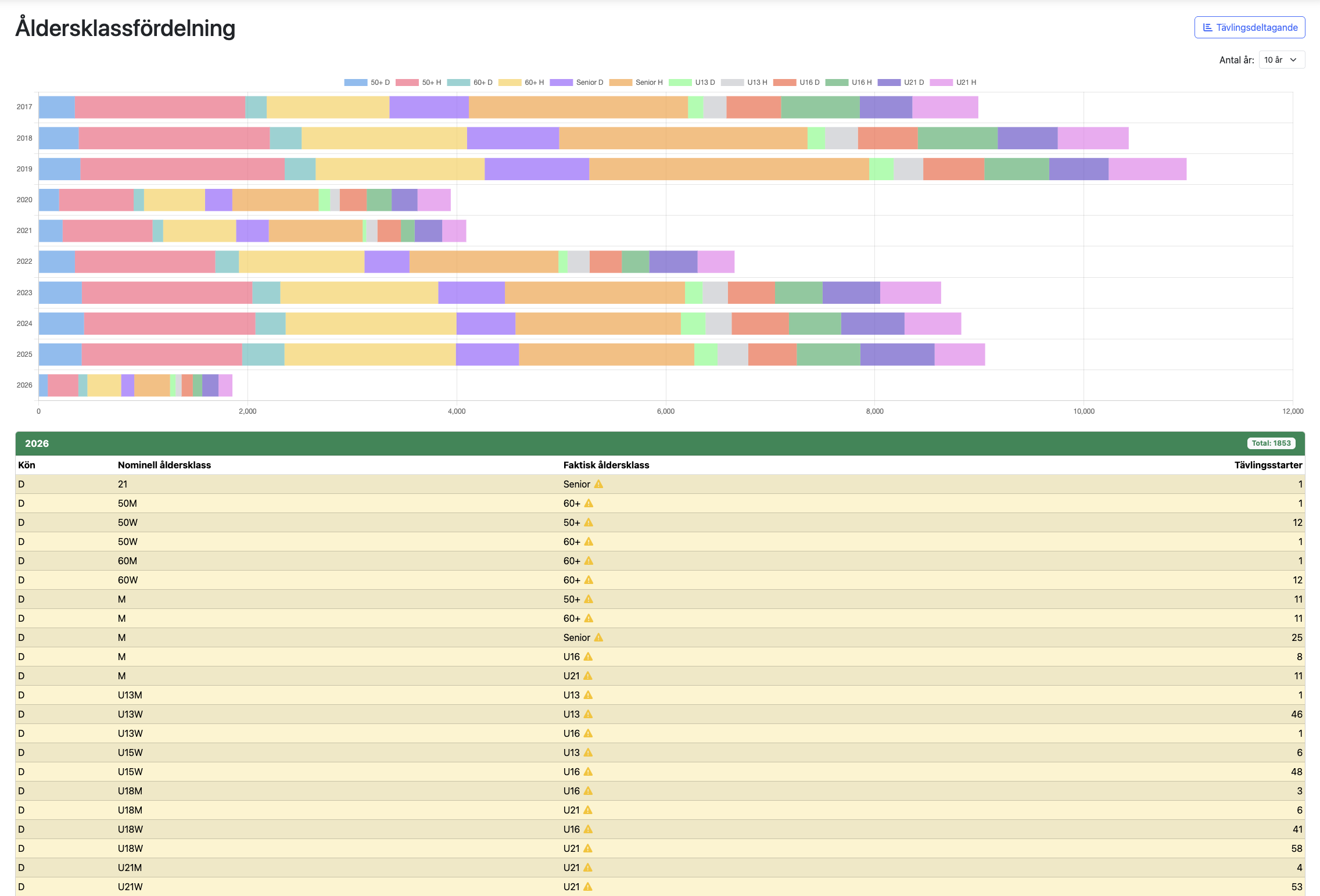
Age Class Breakdown
Shows how starts are distributed across age classes and genders.
- Data is grouped by year.
- Each year shows nominal age class, actual age class, gender, and start count.
- An interactive graph visualizes the distribution.
- By default, the last 10 years are shown. Use the year-range selector to show more or fewer years.
- The most recent years are always shown first.